In a world where your iPhone seems to know your every move, it’s time to take back control. Sure, location services can help you find that trendy taco joint down the street, but they can also turn your phone into a nosy little spy. If you’re tired of your device tracking your every step like a clingy ex, you’re in the right place.
Disabling location services on your iPhone isn’t rocket science, but it can feel like navigating a maze designed by a caffeinated squirrel. Fear not! This guide will walk you through the process with a sprinkle of humor and a dash of professionalism. Say goodbye to unwanted tracking and hello to your newfound freedom—because who doesn’t want to roam the world without a digital shadow?
Understanding Location Services on iPhone
Location services allow apps to use geographic data from a user’s device. These services provide context for various applications, ranging from navigation to social networking.
What Are Location Services?
Location services enable apps to access a device’s GPS, Wi-Fi, and cellular location. Apps like Maps and Weather utilize this data to enhance user experience by offering real-time information. Often, location accuracy improves with the combination of multiple sources. Users enjoy tailored experiences, such as localized search results and personalized recommendations. However, apps may track location even when not in active use. Disabling these services helps regain control over personal data.
Why You Might Want to Disable Location
Privacy concerns often prompt users to disable location services on their iPhones. Constant tracking can lead to unwanted attention and data breaches. Disabling these features reduces the risk of apps logging sensitive information. Some users may notice improved battery life without GPS running in the background. Furthermore, minimizing digital surveillance fosters a sense of security. Limiting location access also applies to apps that don’t require geographic data for core functions. Ultimately, regaining privacy becomes a priority for many individuals.
How to Disable Location on iPhone
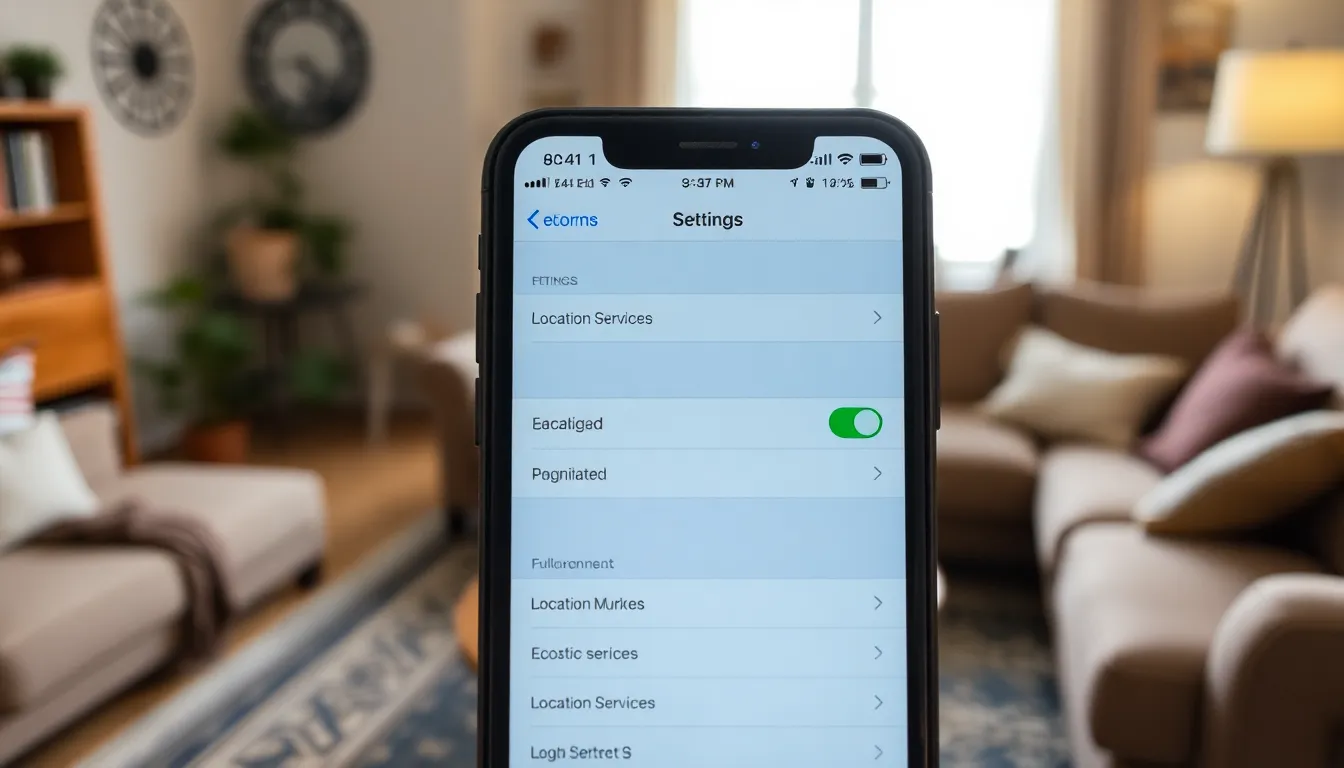
Disabling location services on an iPhone provides users with enhanced privacy and control over their data. This guide outlines two simple methods: using Settings and using Control Center.
Using Settings
To turn off location services, navigate to the Settings app first. Tap Privacy, then select Location Services. It displays a list of apps utilizing location data. Users can disable location access for specific apps by tapping on the app name and selecting Never. To completely deactivate location services, toggle the switch at the top of the screen to off. Keeping location services off prevents apps from tracking location even in the background, ensuring a more private device experience.
Using Control Center
Another quick method to disable location access is through the Control Center. Swipe down from the top-right corner of the screen for iPhone X and later models, or swipe up from the bottom edge for earlier models. Locate the location icon, which looks like an arrow. Tap it to toggle location services off. This option stops all location tracking temporarily until it’s reactivated, providing instant privacy from prying apps and services.
Implications of Disabling Location
Disabling location services on an iPhone brings significant changes to user experience and privacy.
Privacy Benefits
Enhanced privacy emerges as a key advantage of disabling location services. Users can limit unwanted tracking by apps, ensuring their whereabouts remain undisclosed. Personal data stays protected from potential breaches, contributing to a stronger sense of security. Individuals regain control over who accesses their location information, leading to less digital surveillance. Greater ease exists in managing privacy settings, allowing users to customize permissions for specific apps. Finally, disabling these services contributes positively to overall peace of mind.
Potential Drawbacks
Disabling location services introduces potential drawbacks worth considering. Applications may lose functionality without access to geographic data. Navigation apps, for example, may struggle to provide accurate directions or real-time updates. Social media features might become limited, affecting location tagging and check-ins. Additionally, emergency services can face challenges locating users when needed. Users may find their overall app experience diminished, as many rely on location data for various purposes. Prioritizing privacy does sometimes result in a compromise on convenience.
Troubleshooting
When disabling location services on an iPhone, users might encounter several common issues. Some apps may still request location access despite changes in settings. Persistent notifications asking for location permissions can create confusion. Additionally, users may notice that certain features in apps, such as geotagging or location-based alerts, become unavailable after disabling services.
Effective management of location preferences can enhance user experience. Start by reviewing app permissions regularly to ensure only necessary apps retain location access. Adjust settings for specific apps within Privacy in Settings to balance privacy needs with functionality requirements. Utilizing the temporary location sharing option in certain apps can allow users to control when their location is visible. Finally, staying informed on app updates can prevent unexpected changes in location functionality that might affect user settings.
Disabling location services on an iPhone is a vital step toward enhancing personal privacy. By following the outlined methods, users can take control of their data and limit unwanted tracking. While some app functionalities may be affected, the benefits of increased privacy and security often outweigh these drawbacks.
Regularly reviewing app permissions and staying informed about updates can further empower users in managing their location preferences. Ultimately, embracing these changes fosters a more secure digital environment, allowing individuals to enjoy their devices with greater peace of mind.