In a world where multitasking is king, keeping apps running in the background on an iPhone can feel like a magical trick. Ever tried to listen to music while navigating your favorite map app, only to find your tunes cut off like a bad punchline? Fear not! With a few tweaks, your iPhone can juggle apps like a seasoned performer at a circus.
Imagine seamlessly switching between tasks without missing a beat. Whether it’s tracking your workout, catching up on the latest podcast, or staying connected with friends, keeping those apps alive in the background can elevate your iPhone experience. So grab your phone, and let’s dive into the art of background app management—because who doesn’t want their apps to work as hard as they do?
Understanding Background App Refresh
Background App Refresh allows apps to update content while running in the background. This feature enhances user experience by keeping information current without needing to open the app.
What Is Background App Refresh?
Background App Refresh manages how apps refresh and update data automatically. It operates in the background, fetching new content to ensure users access the latest information instantly. Apps like social media and news utilize this feature to display updates as soon as users open them. Enabling this setting varies by app, allowing for customization based on individual preferences.
Importance of Background App Refresh
Background App Refresh plays a crucial role in maintaining app performance on an iPhone. It improves multitasking by allowing users to switch between apps seamlessly without interruptions. Consistent updates from apps enhance engagement, providing timely notifications and content delivery. Users who prioritize this feature experience enhanced connectivity and responsiveness while using their devices. Keeping Background App Refresh enabled fosters efficient app usage, contributing to overall satisfaction.
Steps to Enable Background App Refresh
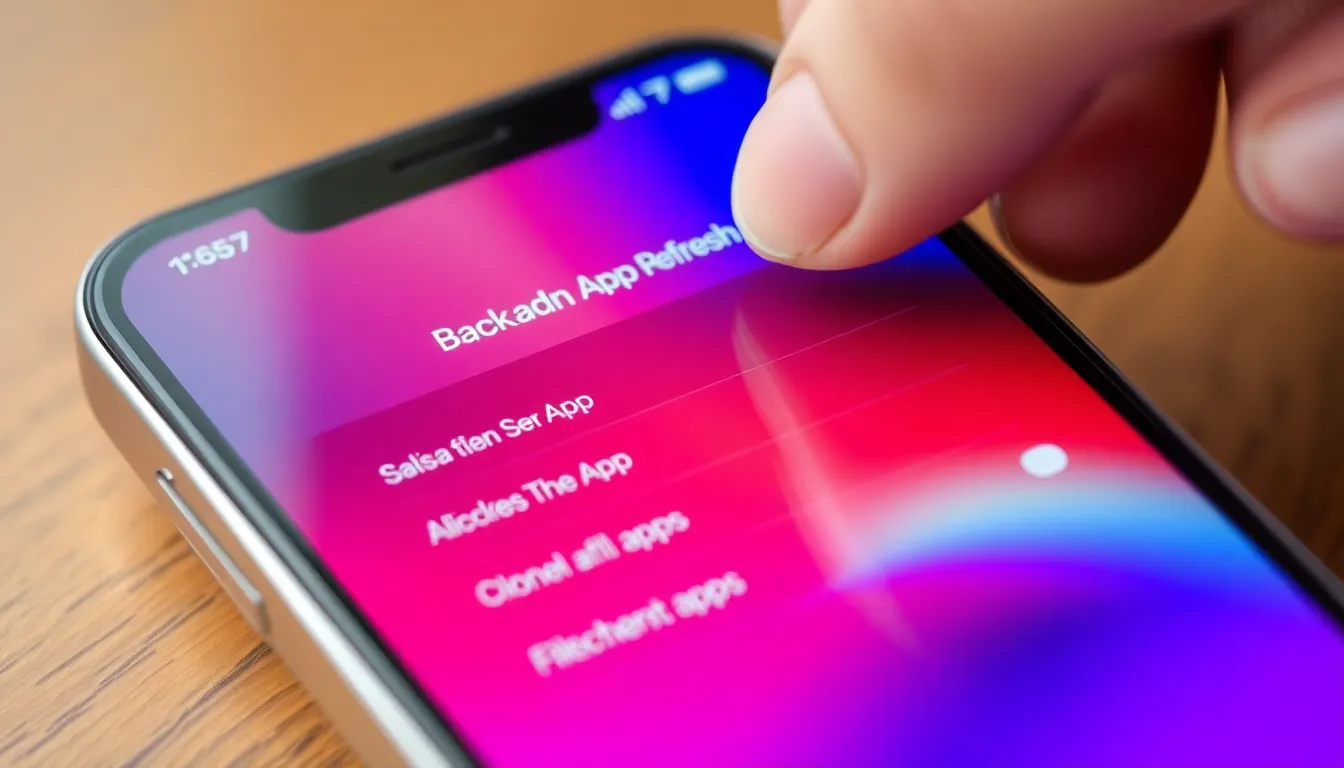
Enabling Background App Refresh optimizes the user experience on an iPhone. This functionality allows apps to update their content in the background, keeping information fresh and readily accessible.
Accessing Settings on iPhone
To enable Background App Refresh, open the Settings app on the iPhone. This icon typically resembles a gear and resides on the home screen. Next, scroll down and tap on “General.” Within the General menu, find and select “Background App Refresh.” Adjust the settings for the desired effect, either turning it on for all apps or just specific ones. Using this straightforward navigation, users can quickly tailor their background app settings for enhanced multitasking.
Selecting Apps to Refresh in Background
After accessing Background App Refresh settings, users can choose which apps to allow updates. This section presents a list of installed apps, each with a toggle switch. By turning the switch on for an app, users enable it to refresh in the background, enhancing its performance. For those who prefer conserving battery life or data usage, switching off Background App Refresh for less critical apps remains an option. Ultimately, prioritizing certain apps streamlines notifications and updates, leading to a seamless experience.
Troubleshooting Common Issues
Managing background apps can sometimes lead to unexpected problems. Users may encounter issues that interrupt their experience or affect device performance.
Apps Not Running in Background
Certain apps may stop functioning effectively in the background. Users might notice interruptions during music playback or while navigating notifications. Checking if Background App Refresh is enabled for each app often resolves this. It’s crucial to ensure that the app permissions allow background activity. If an app remains unresponsive, restarting the iPhone can also help refresh processes and restore app functions.
Battery Drain Concerns
Battery life can suffer when multiple apps run simultaneously in the background. Limiting background activity helps conserve energy. Identifying apps that consume excessive power is essential. Users can review battery usage stats in settings to pinpoint high-drain apps. Disabling Background App Refresh for these apps can significantly improve battery longevity. Making adjustments, like reducing notifications or limiting app access, ensures a more efficient experience.
Alternatives to Background App Refresh
Managing app activity on an iPhone includes alternatives to Background App Refresh. These methods allow users to stay updated without relying solely on that feature.
Using Notifications
Notifications serve as a critical tool for staying informed. They deliver real-time updates for various apps, including social media and messaging. By adjusting notification settings for each app, users can receive alerts for important events while apps run in the background. Regularly checking these notifications ensures users don’t miss significant updates. App settings allow customization of notification types, such as banners or sounds, enhancing user engagement without constant app presence.
Utilizing Widgets
Widgets provide a practical alternative for quick access to app content. Users can place these customizable features on the home screen to display live information, such as weather updates or calendar events. Widgets remove the need to open apps directly, allowing information to flow seamlessly. Arranging widgets based on priority ensures that the most relevant data appears at a glance. This setup increases productivity while keeping essential app functionalities within easy reach. App developers often update widgets to offer richer experiences, making them even more useful for daily tasks.
Mastering background app management on an iPhone can significantly enhance the user experience. By enabling Background App Refresh and customizing notification settings, users can enjoy seamless multitasking and stay updated without constant app switching.
It’s essential to balance performance with battery life by monitoring which apps are allowed to run in the background. This approach not only conserves energy but also ensures that the most important notifications come through.
With these strategies, users can transform their iPhone into a more efficient and enjoyable device, making every interaction smoother and more productive.